One day at a time하루씩 정리
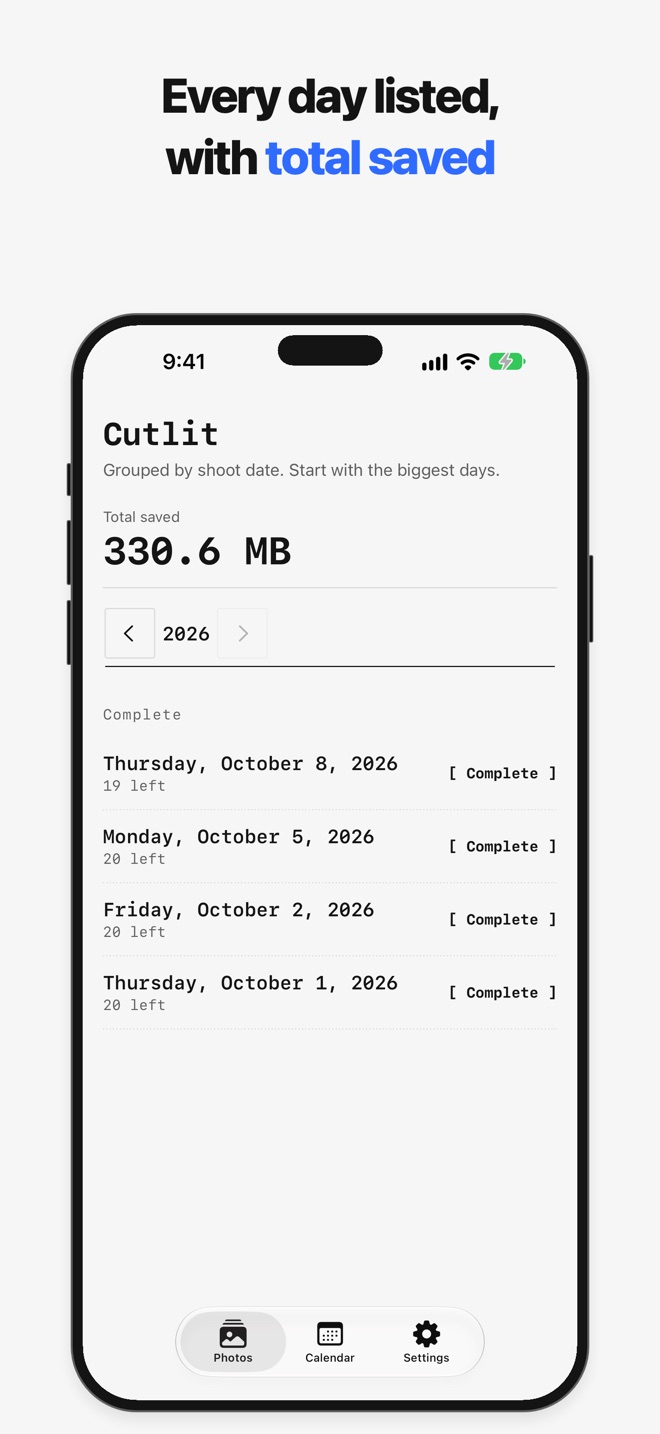
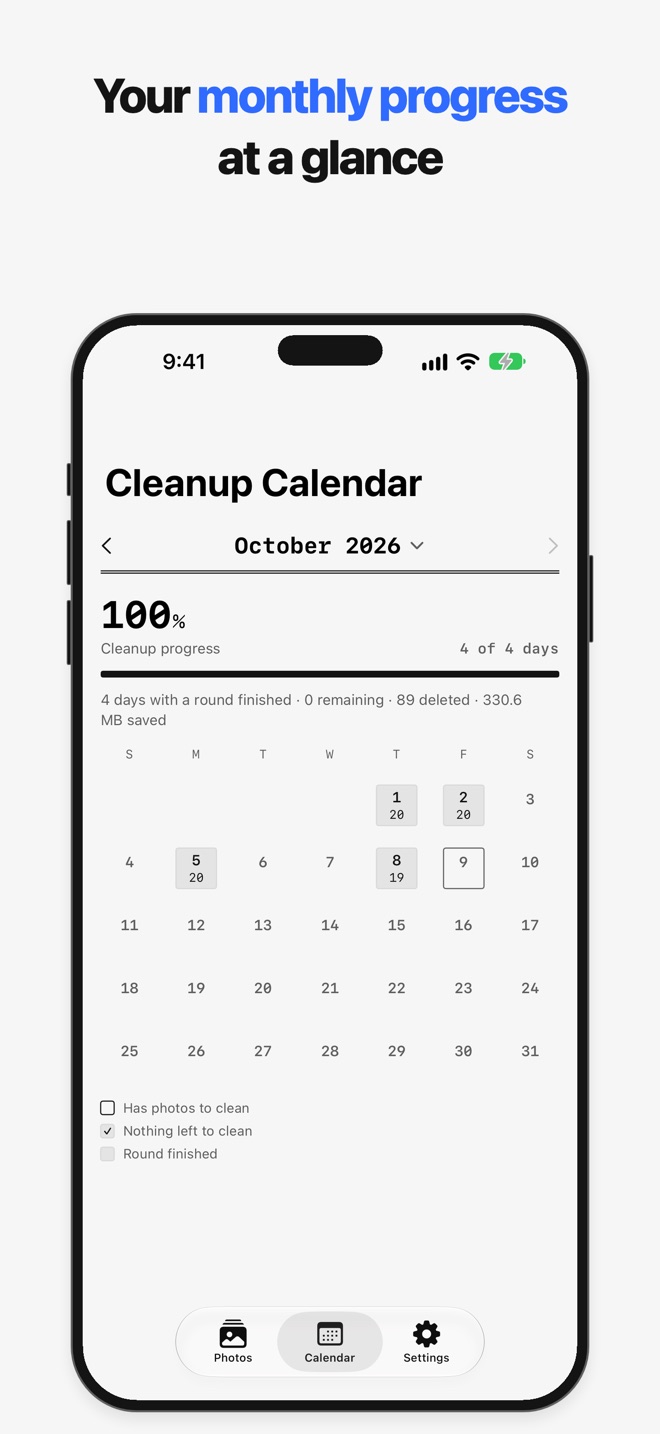
Your library is grouped by the day each photo was taken, so you clean up one day at a time. A calendar shows your progress for each day.
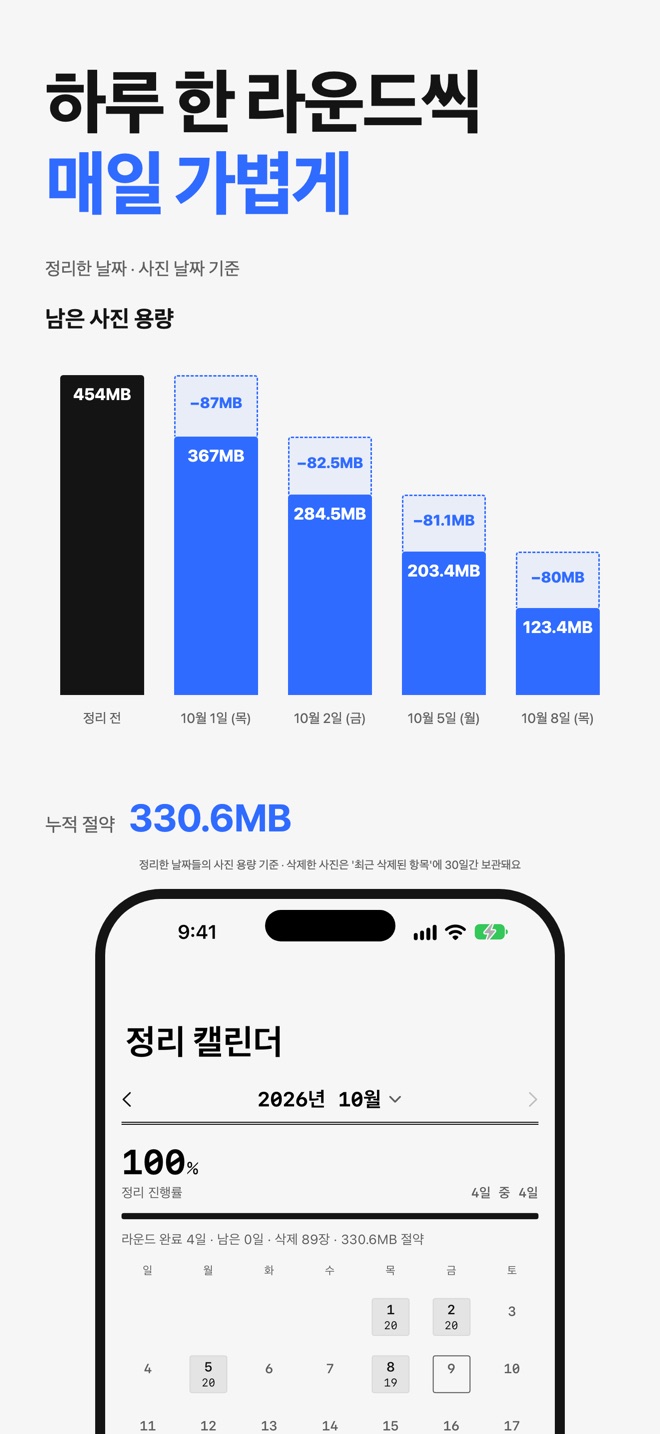
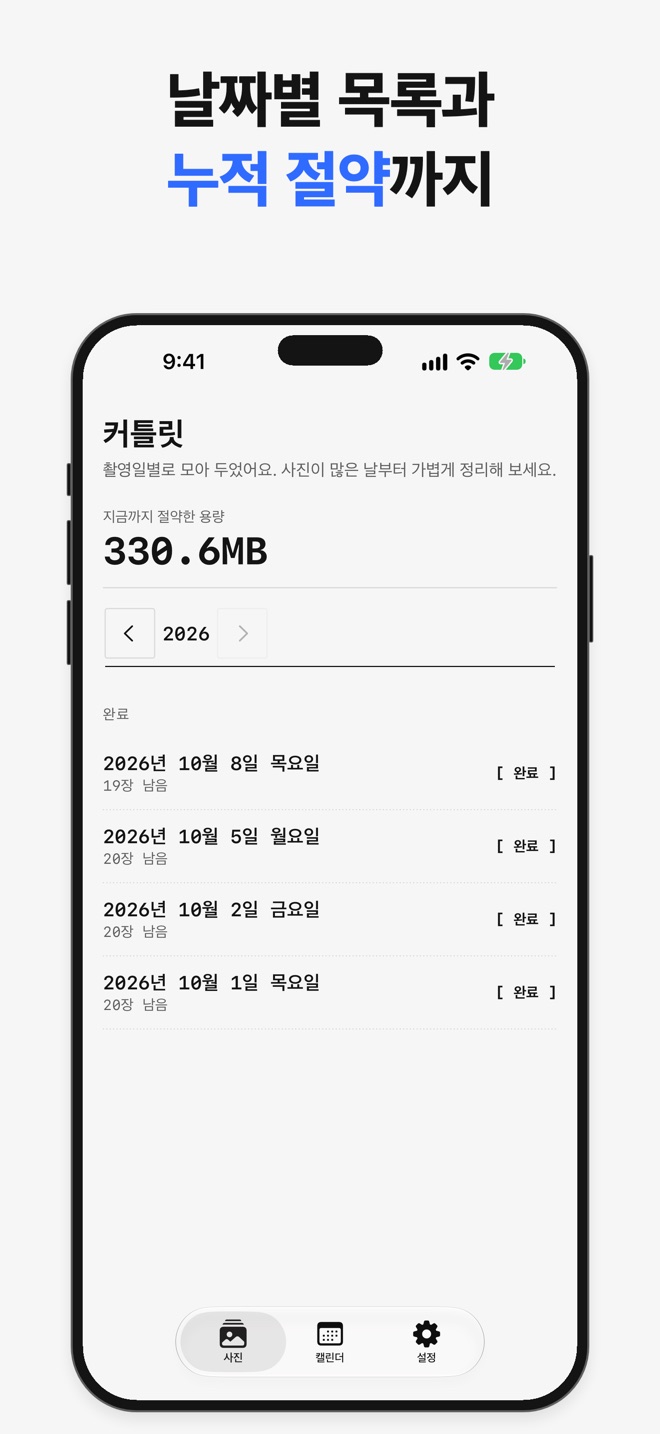
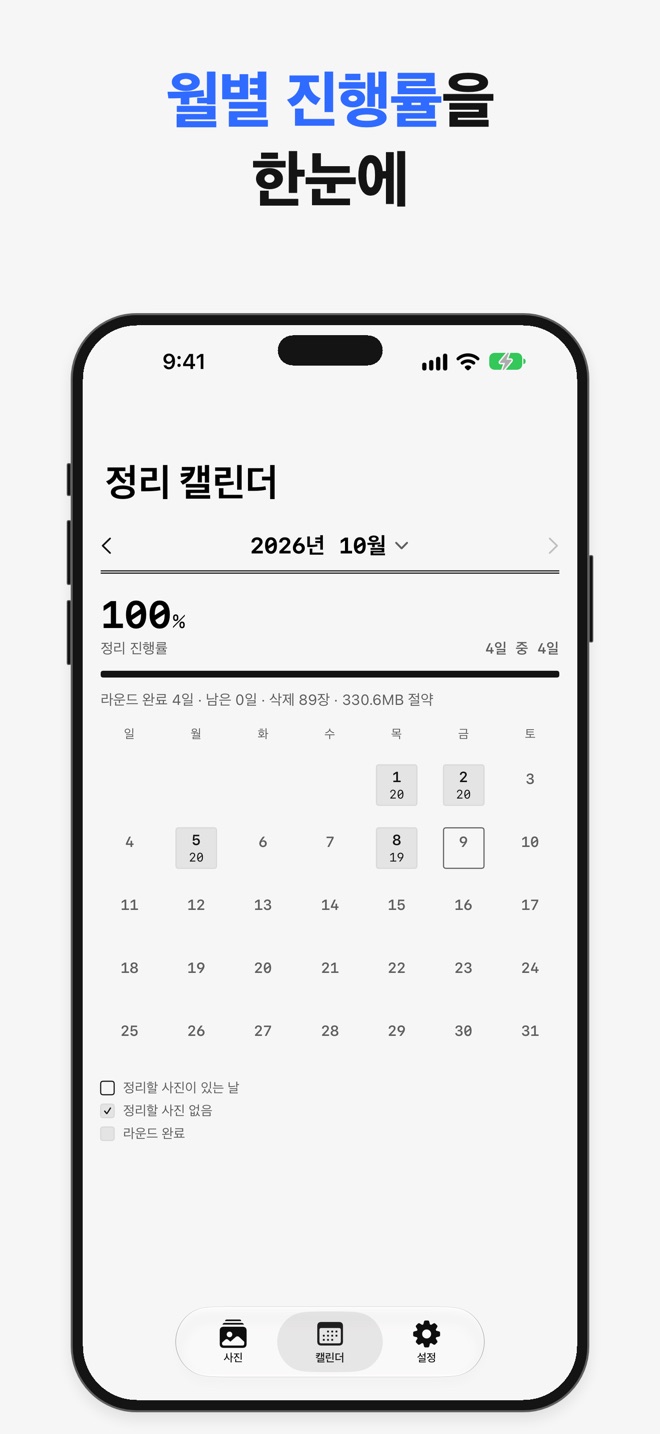
사진을 찍은 날짜별로 묶어 하루씩 정리합니다. 달력에서 날짜마다 진행 상황을 볼 수 있습니다.
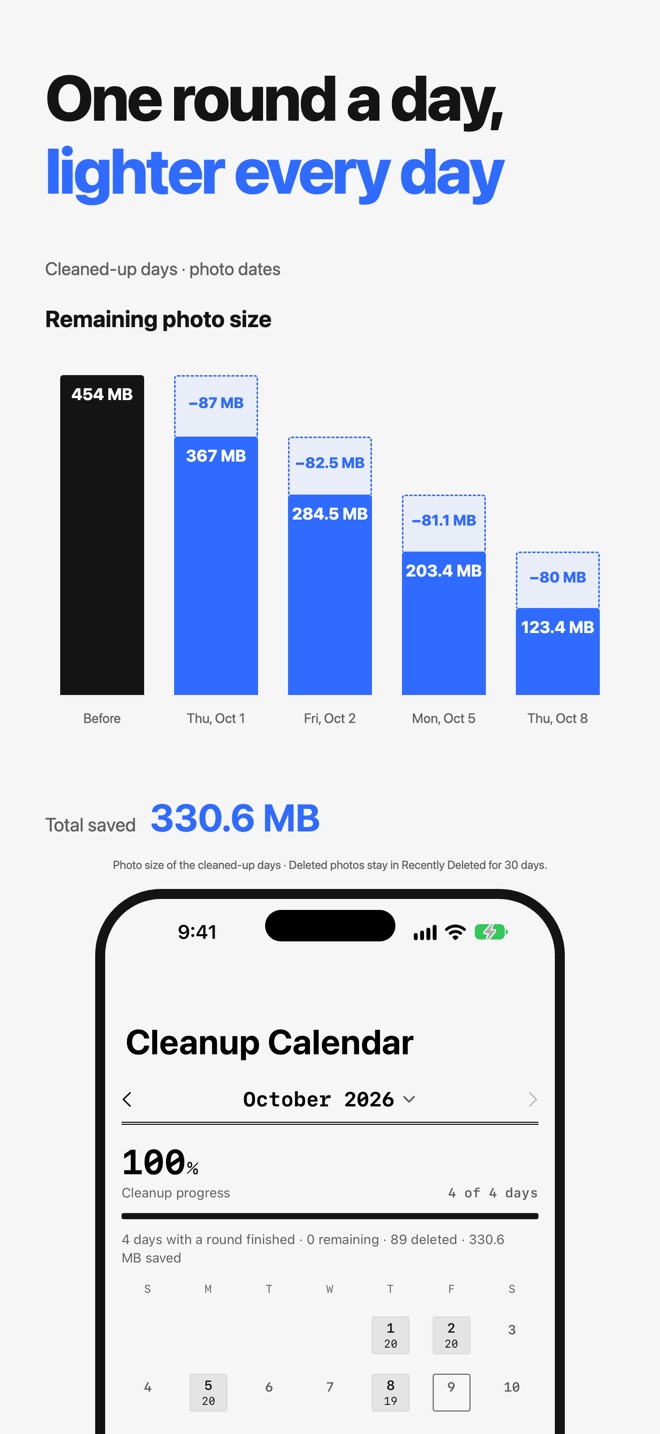

Review your photos day by day and clear the ones you don’t need.
날짜별로 사진을 넘겨 보며 필요 없는 사진을 정리합니다.
Coming soon to the App StoreApp Store 출시 예정
See features기능 보기Requires iOS 17 or later · iPhone onlyiOS 17 이상 iPhone 전용
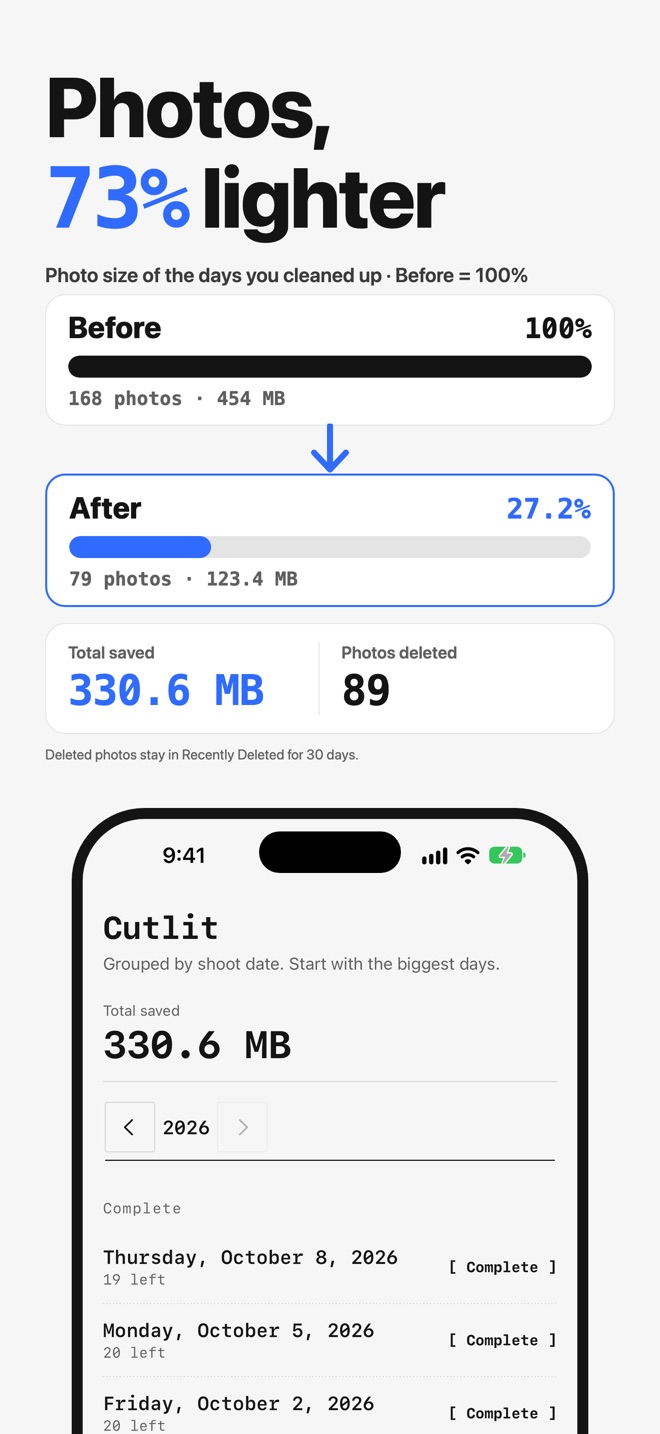
Your library is grouped by the day each photo was taken, so you clean up one day at a time. A calendar shows your progress for each day.
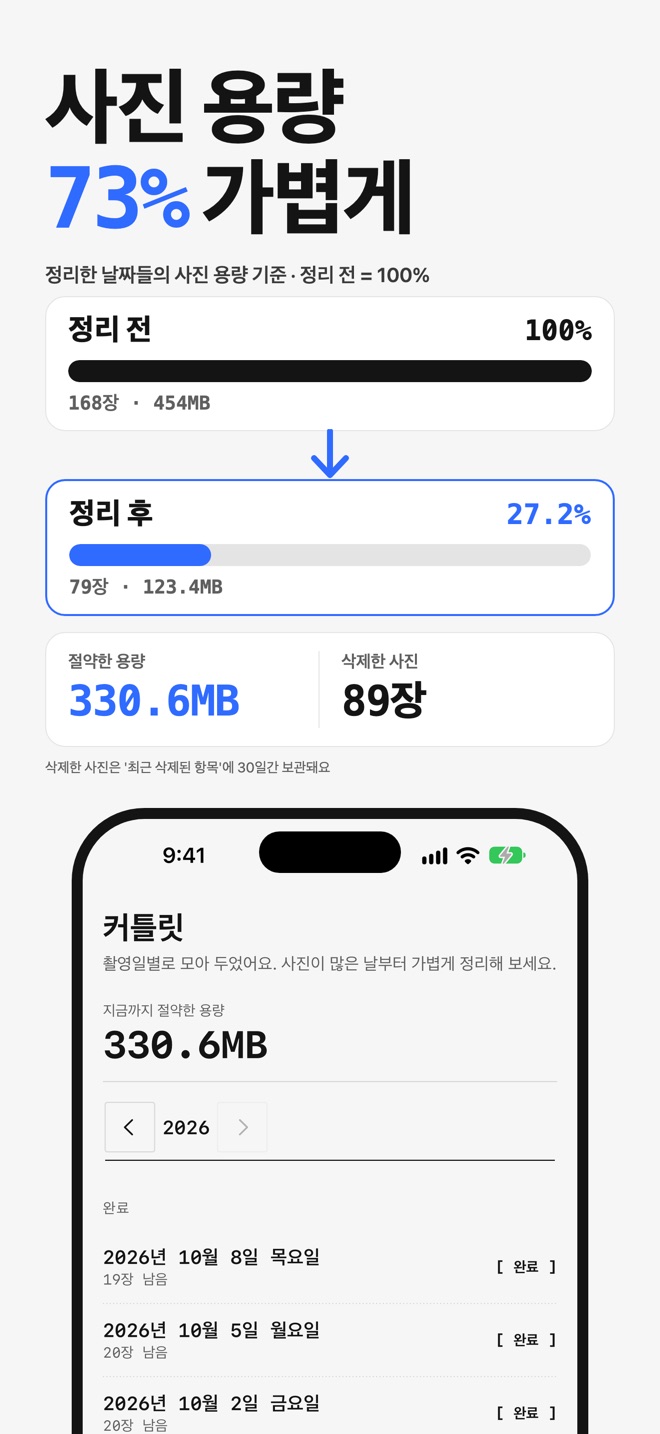
사진을 찍은 날짜별로 묶어 하루씩 정리합니다. 달력에서 날짜마다 진행 상황을 볼 수 있습니다.
Go through photos one by one and mark the ones to delete. You can undo a choice, or finish early to confirm only what you’ve chosen so far. Photos you haven’t seen stay for later.
사진을 한 장씩 넘기며 삭제할 사진을 표시합니다. 선택은 되돌릴 수 있고, 중간에 마쳐 지금까지 고른 사진만 확정할 수도 있습니다. 아직 보지 않은 사진은 그대로 남아 다음에 정리할 수 있습니다.
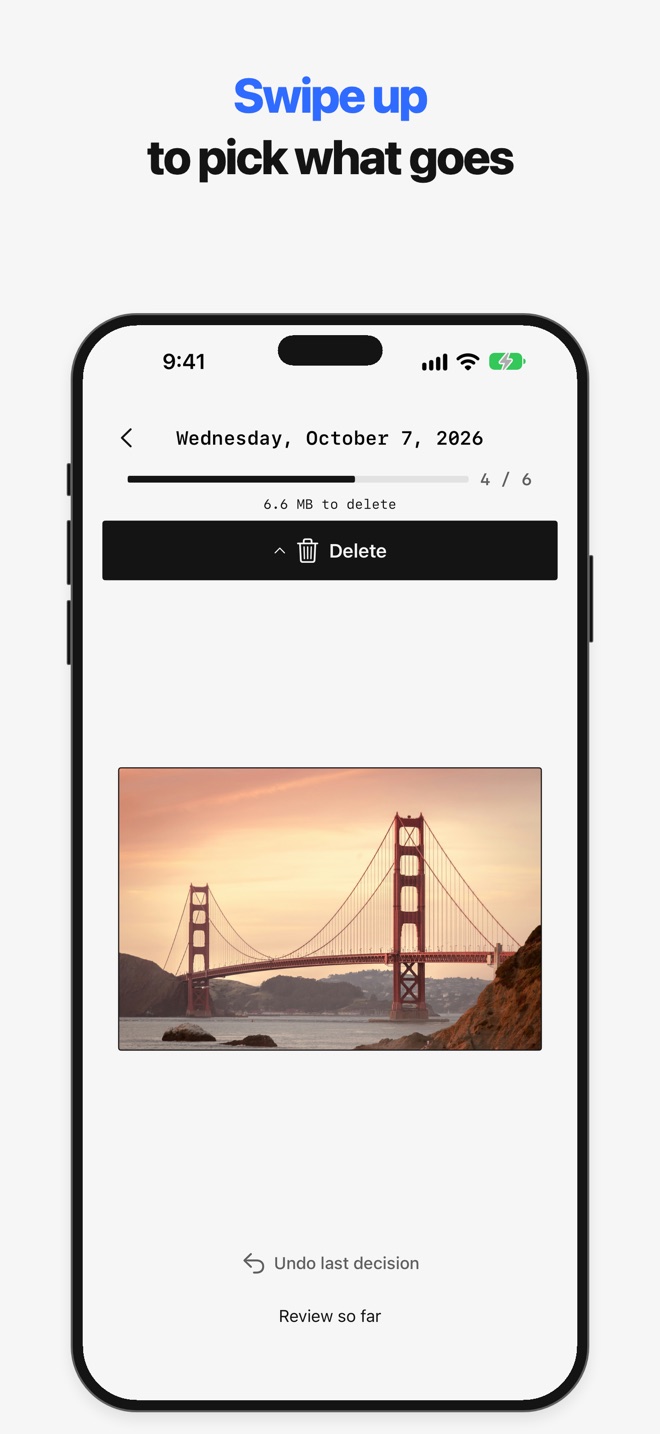
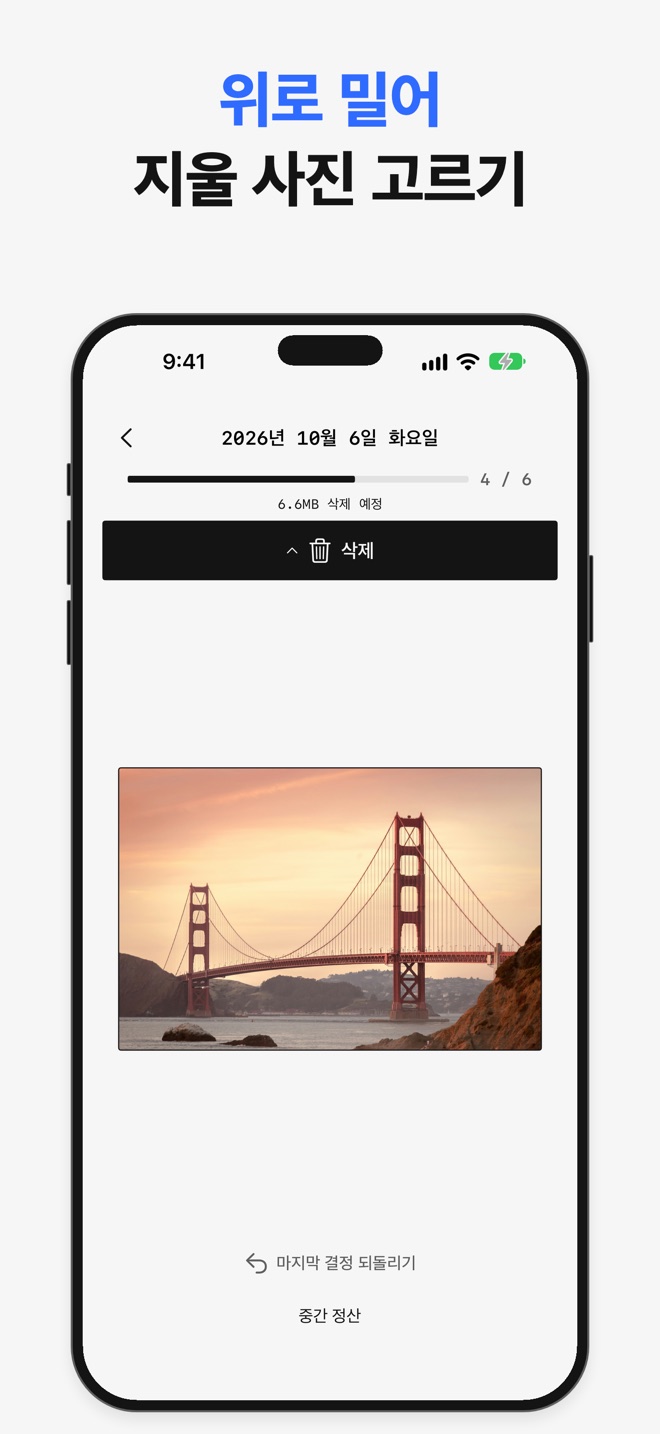
When you finish, the chosen photos are deleted together after the standard iOS confirmation. They go to Recently Deleted in the Photos app, where you can recover them.
정리를 마치면 고른 사진을 iOS 기본 확인을 거쳐 한꺼번에 삭제합니다. 삭제한 사진은 사진 앱의 ‘최근 삭제된 항목’으로 옮겨지며, 그곳에서 복구할 수 있습니다.
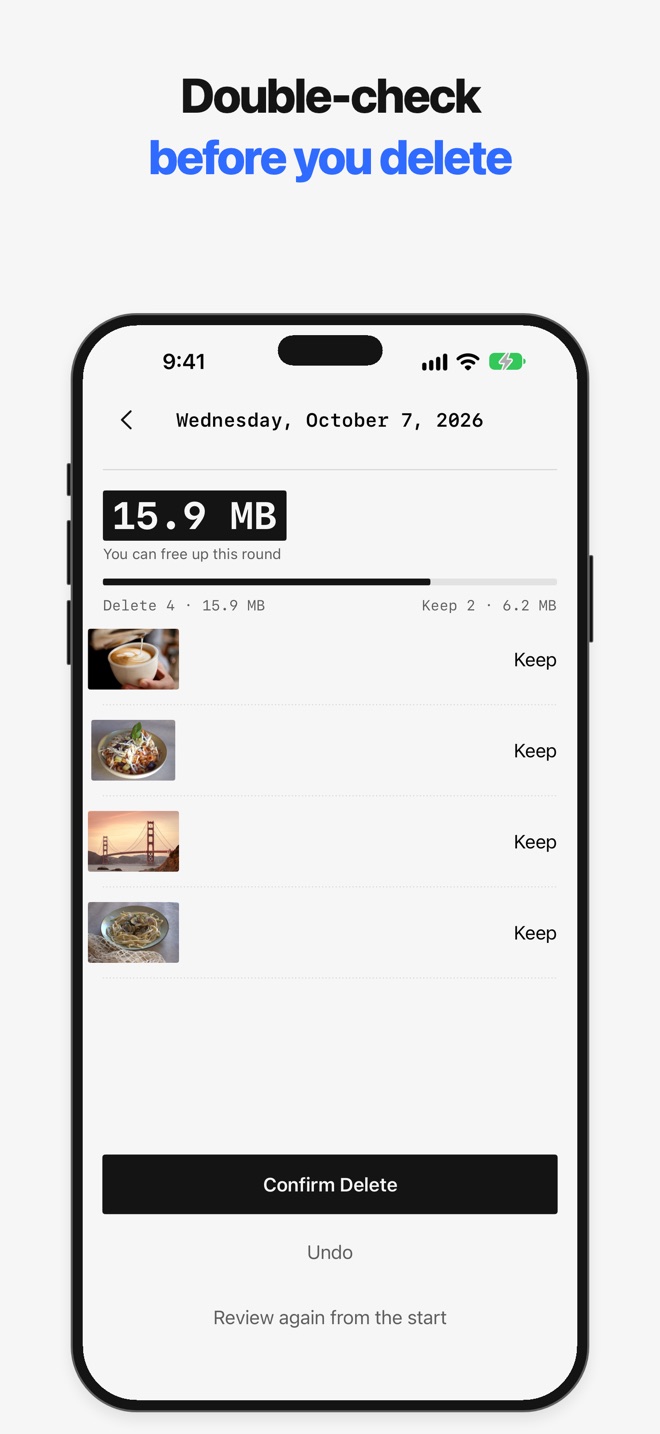
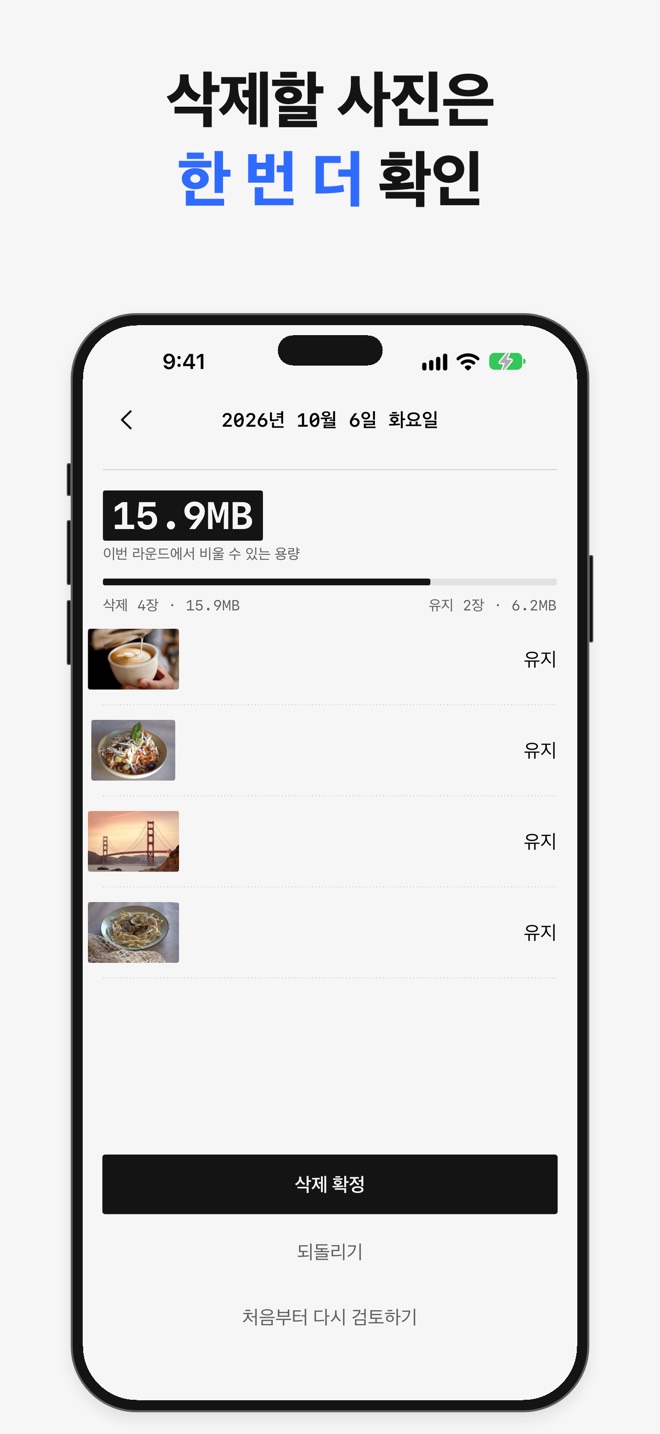
See the size of the photos you’ve chosen to delete, and how much you’ve cleaned up overall and by month.
삭제하려고 고른 사진의 용량과, 지금까지 정리한 양을 전체·월별로 볼 수 있습니다.
Photos optimized for device storage are included. They may be downloaded from Apple to display them and measure their size.
기기 저장 공간을 최적화한 사진도 정리할 수 있습니다. 이런 사진은 표시와 용량 확인을 위해 Apple에서 내려받을 수 있습니다.
Figures in the screenshots come from a 168-photo sample library.스크린샷의 수치는 예시 사진 168장으로 정리한 결과입니다.
Cutlit needs no account. Your photos and cleanup records stay on your device, and photo data is not sent to Sunny J Lab or used for ads.
커틀릿은 계정 없이 사용합니다. 사진과 정리 기록은 기기에 남으며, 사진 데이터는 Sunny J Lab으로 보내거나 광고에 쓰지 않습니다.
The app shows ads from Google AdMob. A one-time “Remove Ads” in-app purchase is available.
앱에는 Google AdMob 광고가 표시되며, 한 번 구매하는 ‘광고 제거’ 인앱 구매를 이용할 수 있습니다.
Yes. Photos deleted with Cutlit go to Recently Deleted in the Photos app, and you can recover them there.
네. 커틀릿으로 삭제한 사진은 사진 앱의 ‘최근 삭제된 항목’으로 옮겨지며, 그곳에서 복구할 수 있습니다.
Deleted photos first move to Recently Deleted in the Photos app. Storage is freed after they are removed from there.
삭제한 사진은 먼저 사진 앱의 ‘최근 삭제된 항목’으로 옮겨집니다. 저장 공간은 그곳에서 사진이 지워진 뒤에 확보됩니다.
No. Your photos and cleanup records stay on your device, and photo data is not sent to Sunny J Lab. With iCloud Photos, photos optimized for device storage may be downloaded from Apple so Cutlit can show them and measure their size.
아니요. 사진과 정리 기록은 기기에 남으며, 사진 데이터는 Sunny J Lab으로 보내지 않습니다. iCloud 사진에서 기기 저장 공간을 최적화한 사진은 표시와 용량 확인을 위해 Apple에서 내려받을 수 있습니다.
Yes, with the one-time “Remove Ads” in-app purchase. Without it, the app shows ads from Google AdMob.
네. 한 번 구매하는 ‘광고 제거’ 인앱 구매로 광고를 없앨 수 있습니다. 구매하지 않으면 Google AdMob 광고가 표시됩니다.
No. Cutlit works with photos only; videos are not included.
아니요. 커틀릿은 사진만 정리하며, 동영상은 정리 대상에 포함되지 않습니다.
Having trouble with Cutlit, or have a question? Send us an email.
커틀릿 사용 중 문제가 있거나 궁금한 점이 있으면 이메일로 알려 주세요.
contact@sunnyjlab.com
Send email 이메일 보내기Include your device model and iOS version so we can look into it faster.
기기 모델과 iOS 버전을 함께 적어 주시면 더 빨리 확인할 수 있습니다.
Requires iOS 17 or later · iPhone onlyiOS 17 이상 iPhone 전용